Getting Started with Windows Forms Multicolumn ComboBox
18 Nov 20183 minutes to read
This section explains how to use the MultiColumnComboBox control to create a combo box that displays multiple columns in its drop-down list.
Assembly deployment
Refer to the Control Dependencies section for the list of required assemblies and NuGet package information needed to use the Multicolumn ComboBox control in your application.
Refer to NuGet Packages to learn how to install NuGet packages in a Windows Forms application.
To install the required NuGet package using the NuGet Package Manager Console, run the following command:
Install-Package Syncfusion.Tools.Windows
Adding Multicolumn ComboBox via Designer
-
Create a new Windows Forms project in Visual Studio.
-
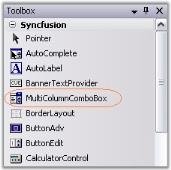
Drag the MultiColumnComboBox control from the Toolbox and drop it onto the Windows Form designer. The following dependent assembly is added automatically:
- Syncfusion.Tools.Windows
Adding Multicolumn ComboBox via Code
To add the MultiColumnComboBox control programmatically, follow these steps:
-
Create a C# or VB.NET Windows Forms application in Visual Studio.
-
Add the following assembly reference to the project:
- Syncfusion.Tools.Windows
-
Include the required namespace.
using System.Windows.Forms;
using Syncfusion.Windows.Forms.Tools;
Imports Syncfusion.Windows.Forms.Tools-
Create an instance of the
MultiColumnComboBoxcontrol and add it to the form.namespace WindowsFormsApplication1 { public partial class Form1 : Form { private MultiColumnComboBox multiColumnComboBox1; public Form1() { InitializeComponent(); multiColumnComboBox1 = new MultiColumnComboBox(); multiColumnComboBox1.Location = new System.Drawing.Point(20, 20); multiColumnComboBox1.Size = new System.Drawing.Size(200, 25); this.Controls.Add(multiColumnComboBox1); } } }Public Class Form1 Inherits Form Private multiColumnComboBox1 As MultiColumnComboBox Public Sub New() InitializeComponent() multiColumnComboBox1 = New MultiColumnComboBox() multiColumnComboBox1.Location = New System.Drawing.Point(20, 20) multiColumnComboBox1.Size = New System.Drawing.Size(200, 25) Me.Controls.Add(multiColumnComboBox1) End Sub End Class
For more data-binding options, refer to Data binding page.