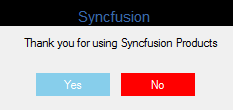
Getting Started with Windows Forms MessageBox
18 Nov 20185 minutes to read
This section explains how to get started with the MessageBoxAdv control in a Windows Forms application. MessageBoxAdv is a static helper class that displays a styled message box from code and does not appear as a draggable item in the Visual Studio Toolbox.
Assembly Deployment
Refer to the Control Dependencies section for the list of assemblies and NuGet packages required to use the MessageBox control.
Refer to NuGet Packages to learn how to install NuGet packages in a Windows Forms application.
To install the required NuGet package using the NuGet Package Manager Console, run the following command:
Install-Package Syncfusion.Shared.Base
Adding MessageBox via Designer
MessageBoxAdv is a static helper class and is not available in the Visual Studio Toolbox. The designer is used only to add a trigger control (for example, a Button) and generate its Click event handler. The MessageBoxAdv.Show method must be called in code.
The following dependent assembly is required to use MessageBoxAdv:
- Syncfusion.Shared.Base
-
Create a new Windows Forms project in Visual Studio.
-
Open the Toolbox and drag a Button control (for example, named
btnShow) onto the form. -
Double-click the button to generate its
Clickevent handler, and then add the following code to display a MessageBox.
private void btnShow_Click(object sender, EventArgs e)
{
    // Display the MessageBox using MessageBoxAdv.Show.
    MessageBoxAdv.MessageBoxStyle = MessageBoxAdv.Style.Metro;
    MessageBoxAdv.Show(this, "Save changes?", "File Modified", MessageBoxButtons.YesNo, MessageBoxIcon.Question);
}
Private Sub btnShow_Click(sender As Object, e As EventArgs)
' Display the MessageBox using MessageBoxAdv.Show.
MessageBoxAdv.MessageBoxStyle = MessageBoxAdv.Style.Metro
MessageBoxAdv.Show(Me, "Save changes?", "File Modified", MessageBoxButtons.YesNo, MessageBoxIcon.Question)
End SubAdding MessageBox via Code
To use MessageBox in code, follow these steps:
-
Add the required assembly reference to the project:
- Syncfusion.Shared.Base
-
Include the required namespace (
Syncfusion.Windows.Forms), and then call the Show method from the form constructor, as shown below.
using System.Windows.Forms;
using Syncfusion.Windows.Forms;

namespace MessageBoxAdvDemo
{
    public partial class Form1 : Form
    {
        public Form1()
        {
            InitializeComponent();
            // Display the MessageBox using MessageBoxAdv.Show.
            MessageBoxAdv.MessageBoxStyle = MessageBoxAdv.Style.Metro;
            MessageBoxAdv.Show(this, "Save changes?", "File Modified", MessageBoxButtons.YesNo, MessageBoxIcon.Question);
        }
    }
}
Imports System.Windows.Forms
Imports Syncfusion.Windows.Forms
Public Class Form1
Inherits Form
Public Sub New()
InitializeComponent()
' Display the MessageBox using MessageBoxAdv.Show.
MessageBoxAdv.MessageBoxStyle = MessageBoxAdv.Style.Metro
MessageBoxAdv.Show(Me, "Save changes?", "File Modified", MessageBoxButtons.YesNo, MessageBoxIcon.Question)
End Sub
End Class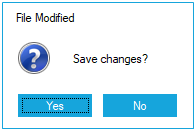
Appearance of MessageBox
The appearance of MessageBox can be customized using the following properties of the MetroStyleColorTable. To apply the custom color settings, set the MessageBoxAdv.MessageBoxStyle property to a Metro-compatible style, such as Style.Metro.
Button colors
- AbortButtonBackColor
- CancelButtonBackColor
- IgnoreButtonBackColor
- NoButtonBackColor
- OKButtonBackColor
- RetryButtonBackColor
- YesButtonBackColor
Caption and background
- CaptionBarColor
- CaptionForeColor
- ForeColor
- BackColor
- BorderColor
using System.Drawing;
using Syncfusion.Windows.Forms;

// MetroStyleColorTable for MessageBoxAdv
MetroStyleColorTable metroColorTable = new MetroStyleColorTable();
// Sets the NoButton BackColor
metroColorTable.NoButtonBackColor = Color.Red;
// Sets the YesButton BackColor
metroColorTable.YesButtonBackColor = Color.SkyBlue;
// Sets the OK Button BackColor
metroColorTable.OKButtonBackColor = Color.Green;
// Applies the MetroStyleColorTable to MessageBoxAdv
MessageBoxAdv.MetroColorTable = metroColorTable;
// Sets the MessageBoxStyle as Metro
MessageBoxAdv.MessageBoxStyle = MessageBoxAdv.Style.Metro;
Imports System.Drawing
Imports Syncfusion.Windows.Forms
' MetroStyleColorTable for MessageBoxAdv
Dim metroColorTable As New MetroStyleColorTable()
' Sets the NoButton BackColor
metroColorTable.NoButtonBackColor = Color.Red
' Sets the YesButton BackColor
metroColorTable.YesButtonBackColor = Color.SkyBlue
' Sets the OK Button BackColor
metroColorTable.OKButtonBackColor = Color.Green
' Applies the MetroStyleColorTable to MessageBoxAdv
MessageBoxAdv.MetroColorTable = metroColorTable
' Sets the MessageBoxStyle as Metro
MessageBoxAdv.MessageBoxStyle = MessageBoxAdv.Style.Metro