Getting Started with WinForms Folder Browser
18 Nov 20183 minutes to read
Assembly deployment
Refer to the control dependencies section to get the list of assemblies or NuGet packages that need to be added as a reference to use the control in any application.
You can find more details about installing the NuGet package in a Windows Forms application at the following link:
Create a simple application with WinForms Folder Browser
You can create a Windows Forms application with the WinForms Folder Browser control using the following steps:
Create a project
Create a new Windows Forms project in Visual Studio to select a folder using the WinForms Folder Browser control.
Add control through designer
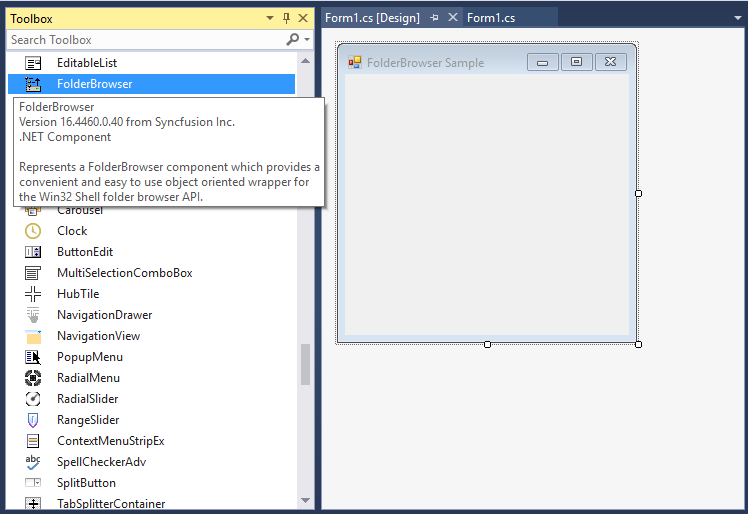
The WinForms Folder Browser control can be added to an application by dragging it from the toolbox onto the designer surface. The Syncfusion.Shared.Base assembly reference will be added automatically to the project.
Add control manually in code
To add the control manually, follow the steps below:
-
Add the Syncfusion.Shared.Base assembly reference to the project.
-
Add the Syncfusion.Windows.Forms.Tools namespace:
using Syncfusion.Windows.Forms.Tools;Imports Syncfusion.Windows.Forms.Tools -
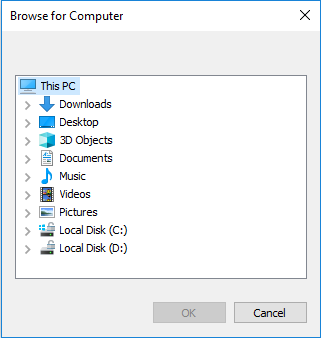
Create a WinForms Folder Browser control instance and invoke the FolderBrowser.ShowDialog() method to display the dialog.
// FolderBrowser instance (assumes the form declares a field: private FolderBrowser folderBrowser1;).
folderBrowser1 = new FolderBrowser();

// Specify the start location.
this.folderBrowser1.StartLocation = Syncfusion.Windows.Forms.FolderBrowserFolder.MyComputer;

// Specify the styles for the FolderBrowser dialog.
this.folderBrowser1.Style = Syncfusion.Windows.Forms.FolderBrowserStyles.RestrictToFilesystem
                          | Syncfusion.Windows.Forms.FolderBrowserStyles.BrowseForComputer;

// Display the folder browser dialog.
this.folderBrowser1.ShowDialog();
' FolderBrowser instance (assumes the form declares a field: Private folderBrowser1 As FolderBrowser). folderBrowser1 = New FolderBrowser() ' Specify the start location. Me.folderBrowser1.StartLocation = Syncfusion.Windows.Forms.FolderBrowserFolder.MyComputer ' Specify the styles for the FolderBrowser dialog. Me.folderBrowser1.Style = Syncfusion.Windows.Forms.FolderBrowserStyles.RestrictToFilesystem _ Or Syncfusion.Windows.Forms.FolderBrowserStyles.BrowseForComputer ' Display the folder browser dialog. Me.folderBrowser1.ShowDialog()
Auto complete file path
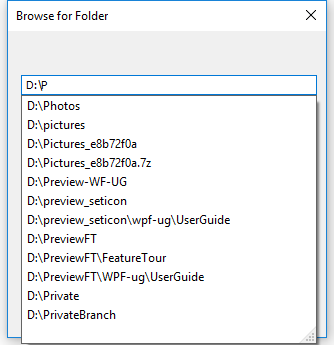
The WinForms Folder Browser control supports editing a folder location and auto-complete, which displays available folder paths in a drop-down list to choose from. To enable this, set the Style property to ShowTextBox.
this.folderBrowser1.Style = Syncfusion.Windows.Forms.FolderBrowserStyles.ShowTextBox;Me.folderBrowser1.Style = Syncfusion.Windows.Forms.FolderBrowserStyles.ShowTextBox