Getting Started with WinForms Double TextBox
18 Nov 20183 minutes to read
Assembly deployment
Refer to the Control Dependencies section to get the list of assemblies or the NuGet package that needs to be added as a reference to use the control in any application.
You can find more details about installing the NuGet packages in a Windows Forms application in the following link:
Create a simple application with WinForms Double TextBox
You can create a Windows Forms application with WinForms Double TextBox using the following steps:
Create a project
Create a new Windows Forms project in Visual Studio to display the WinForms Double TextBox control.
Add control through designer
The WinForms Double TextBox control can be added to an application by dragging it from the toolbox to the design view. The Syncfusion.Shared.Base assembly reference will be added automatically.
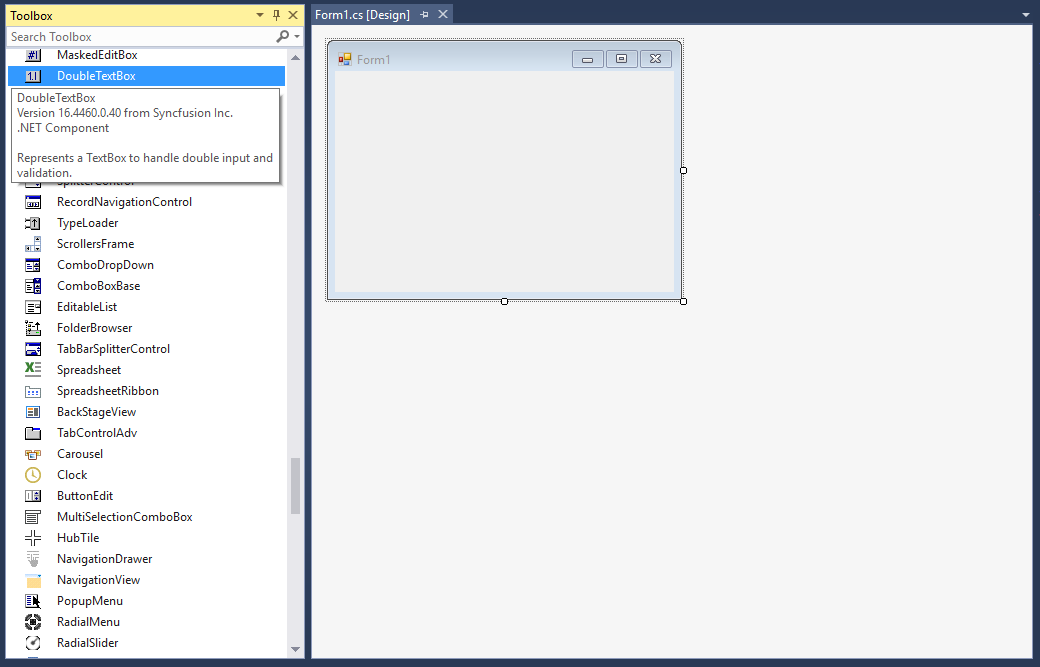
Add control manually in code
To add the control manually in C#, follow the given steps:
-
Add the Syncfusion.Shared.Base assembly reference to the project:
-
Include the Syncfusion.Windows.Forms.Tools namespace.
using Syncfusion.Windows.Forms.Tools;Imports Syncfusion.Windows.Forms.Tools -
Create a WinForms Double TextBox instance, and add it to the window.
DoubleTextBox doubleTextBox1 = new DoubleTextBox();
this.Controls.Add(doubleTextBox1);
Dim doubleTextBox1 As DoubleTextBox = New DoubleTextBox() Me.Controls.Add(doubleTextBox1)

Maximum and minimum value constraints
You can set the maximum and minimum values using the MaxValue and MinValue properties of the WinForms Double TextBox.
this.doubleTextBox1.MaxValue = 25;
this.doubleTextBox1.MinValue = 4;Me.doubleTextBox1.MaxValue = 25
Me.doubleTextBox1.MinValue = 4Change number format
You can customize the number format using the NumberDecimalDigits, NumberDecimalSeparator, NumberGroupSeparator, NumberGroupSizes, and NumberNegativePattern properties of the WinForms Double TextBox.
this.doubleTextBox1.DoubleValue = 24851343548781;
this.doubleTextBox1.NumberDecimalDigits = 3;
this.doubleTextBox1.NumberDecimalSeparator = "-";
this.doubleTextBox1.NumberGroupSeparator = ";";
this.doubleTextBox1.NumberGroupSizes = new int[] { 4 };
this.doubleTextBox1.NumberNegativePattern = 2;Me.doubleTextBox1.DoubleValue = 24851343548781
Me.doubleTextBox1.NumberDecimalDigits = 3
Me.doubleTextBox1.NumberDecimalSeparator = "-"
Me.doubleTextBox1.NumberGroupSeparator = ";"
Me.doubleTextBox1.NumberGroupSizes = New Integer() { 3 }
Me.doubleTextBox1.NumberNegativePattern = 2