Getting Started with WinForms Docking Control
18 Nov 201813 minutes to read
This section explains how to design a WinForms Docking Control in Windows Forms application and overview of its basic functionalities.
Assembly deployment
The following list of assemblies should be added as reference to use the WinForms Docking Control in any application:
Refer control dependencies section to get the list of assemblies or NuGet package needs to be added as reference to use the control in any application.
Find more details about how to install the nuget packages in Windows Forms application in the following link:
Creating simple application with WinForms Docking Control
You can create the Windows Forms application with WinForms Docking Control as follows:
- Creating the project
- Adding control via Designer
- Adding control manually in code
- Add dock child window
- Change Dock State of child
- Change Dock Side
- Make MDI child
- Serialize Dock windows
Creating the project
Create a new Windows Forms project in the Visual Studio to dock panels as like Visual Studio using the WinForms Docking Control.
Adding control via designer
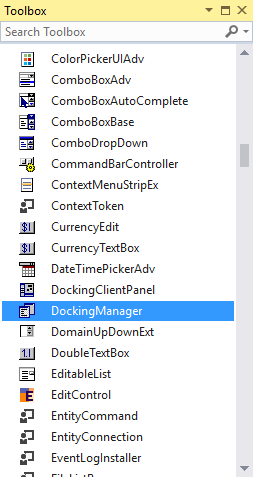
To add the WinForms Docking Control to an application, drag it from the toolbox and drop in a designer view. The following required assembly references will be added automatically:
- Syncfusion.Grid.Base.dll
- Syncfusion.Grid.Windows.dll
- Syncfusion.Shared.Base.dll
- Syncfusion.Shared.Windows.dll
- Syncfusion.Tools.Base.dll
- Syncfusion.Tools.Windows.dll
Adding control manually in code
To add control manually in C#, follow the given steps:
- Add the following required assembly references to the project:
- Syncfusion.Grid.Base.dll
- Syncfusion.Grid.Windows.dll
- Syncfusion.Shared.Base.dll
- Syncfusion.Shared.Windows.dll
- Syncfusion.Tools.Base.dll
- Syncfusion.Tools.Windows.dll
-
Create WinForms Docking Control instance and add it to the component list.
// Create the WinForms Docking Control instance and add it the component list.

private Syncfusion.Windows.Forms.Tools.DockingManager dockingManager1;

this.components = new System.ComponentModel.Container();

this.dockingManager1 = new Syncfusion.Windows.Forms.Tools.DockingManager(this.components);

this.dockingManager1.HostControl = this;
'Create the WinForms Docking Control instance and add it the component list. Private dockingManager1 As Syncfusion.Windows.Forms.Tools.DockingManager Me.components = New System.ComponentModel.Container() Me.dockingManager1 = New Syncfusion.Windows.Forms.Tools.DockingManager(Me.components) Me.dockingManager1.HostControl = Me
Add dock child window
Docking can be enabled to any controls by invoking SetEnableDocking with the corresponding WinForms Docking Control. Here, four panels are added to the form and transformed to a docking window.
private System.Windows.Forms.Panel panel1;

private System.Windows.Forms.Panel panel2;

private System.Windows.Forms.Panel panel3;

private System.Windows.Forms.Panel panel4;

this.panel1 = new System.Windows.Forms.Panel();

this.panel2 = new System.Windows.Forms.Panel();

this.panel3 = new System.Windows.Forms.Panel();

this.panel4 = new System.Windows.Forms.Panel();

//Enables the docking for the panels

this.dockingManager1.SetEnableDocking(panel1, true);

this.dockingManager1.SetEnableDocking(panel2, true);

this.dockingManager1.SetEnableDocking(panel3, true);

this.dockingManager1.SetEnableDocking(panel4, true);
Private panel1 As System.Windows.Forms.Panel
Private panel2 As System.Windows.Forms.Panel
Private panel3 As System.Windows.Forms.Panel
Private panel4 As System.Windows.Forms.Panel
Me.panel1 = New System.Windows.Forms.Panel()
Me.panel2 = New System.Windows.Forms.Panel()
Me.panel3 = New System.Windows.Forms.Panel()
Me.panel4 = New System.Windows.Forms.Panel()
'Enables the docking for the panels
Me.dockingManager1.SetEnableDocking(panel1, True)
Me.dockingManager1.SetEnableDocking(panel2, True)
Me.dockingManager1.SetEnableDocking(panel3, True)
Me.dockingManager1.SetEnableDocking(panel4, True)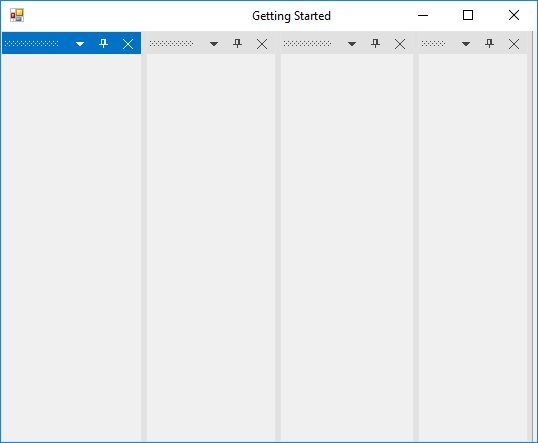
Identify whether the panel is docking or not
The GetEnableDocking function of WinForms Docking Control helps to determine whether the child window is docking or not.
Console.Write("DockWindow Header:" + this.dockingManager1.GetEnableDocking(panel1));Console.Write("DockWindow Header:" + Me.dockingManager1.GetEnableDocking(panel1))Change header of child window
The SetDockLabel function helps to set the label for a child window.
// To set the label for the docked controls

this.dockingManager1.SetDockLabel(panel1, "Solution Explorer");

this.dockingManager1.SetDockLabel(panel2, "Toolbox");

this.dockingManager1.SetDockLabel(panel3, "Properties");

this.dockingManager1.SetDockLabel(panel4, "Output");
' To set the label for the docked controls
Me.dockingManager1.SetDockLabel(panel1, "Solution Explorer");
Me.dockingManager1.SetDockLabel(panel2, "Toolbox");
Me.dockingManager1.SetDockLabel(panel3, "Properties");
Me.dockingManager1.SetDockLabel(panel4, "Output");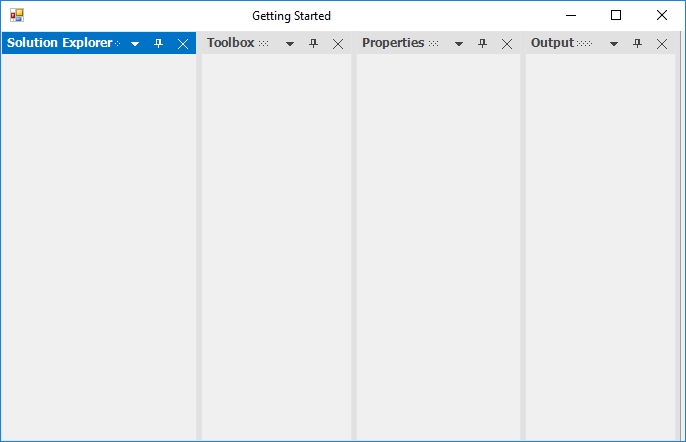
Get label of the dock panel
The GetDockLabel function helps to get the label of the child window.
// Get the label for the docked control

Console.Write("DockWindow Header:" + this.dockingManager1.GetDockLabel(panel1));
'Get the label for the docked control
Console.Write("DockWindow Header:" + Me.dockingManager1.GetDockLabel(panel1))Change dock state of child
The WinForms Docking Control provides an option to dock, float, and auto hide the controls.
To dock the child window, use the following code snippet.
//To dock the panel1 on top side of the form.

this.dockingManager1.DockControl(this.panel1, this, Syncfusion.Windows.Forms.Tools.DockingStyle.Top, 100);
'To dock the panel1 on top side of the form.
Me.dockingManager1.DockControl(Me.panel1, Me, Syncfusion.Windows.Forms.Tools.DockingStyle.Top, 100)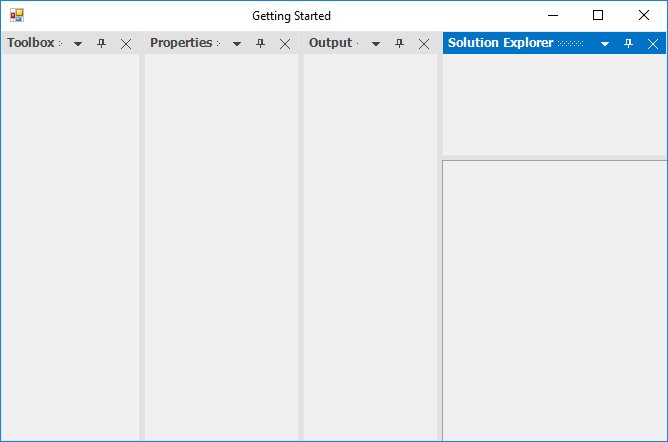
To float the control, use the following code snippet.
//To set properties window state as floating at the desired location.

Rectangle rectangle = this.Bounds;

this.dockingManager1.FloatControl(this.panel3, new Rectangle(rectangle.Right - 300, rectangle.Bottom - 300, 200, 200));
'To set properties window state as floating at the desired location.
Dim rectangle As Rectangle = Me.Bounds
Me.dockingManager1.FloatControl(Me.panel3, New Rectangle(rectangle.Right - 300, rectangle.Bottom - 300, 200, 200))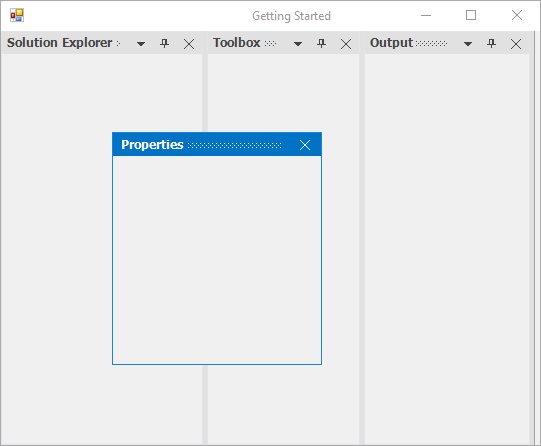
To auto hide the control, use the following code snippet.
// Sets panel1 as AutoHidden window

this.dockingManager1.SetAutoHideMode(panel1, true); //false to remove auto hide state.
'Sets panel1 as AutoHidden window
Me.dockingManager1.SetAutoHideMode(panel1, True) 'false to remove auto hide state.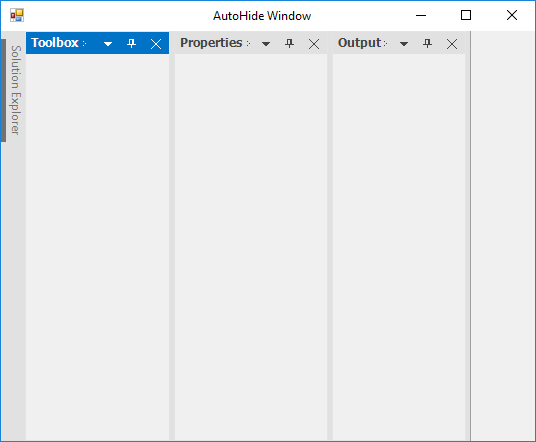
Change dock side
The DockControl function helps to dock a panel at the required side using the DockingStyle argument.
Set the DockingStyle value to right for docking the “Solution Explorer” panel on the right.
The DockingStyle tabbed option is used to tab a panel with another panel. The tabbing windows need to be aware of the parent control name. Set the “Output” window’s parent as “SolutionExplorer” to tab it on the “SolutionExplorer” window.
// To set the DockingStyle for the docked controls

this.dockingManager1.DockControl(this.panel3, this, Syncfusion.Windows.Forms.Tools.DockingStyle.Bottom, 100);

this.dockingManager1.DockControl(this.panel2, this, Syncfusion.Windows.Forms.Tools.DockingStyle.Left, 200);

this.dockingManager1.DockControl(this.panel1, this, Syncfusion.Windows.Forms.Tools.DockingStyle.Right, 200);

this.dockingManager1.DockControl(this.panel4, panel1, Syncfusion.Windows.Forms.Tools.DockingStyle.Tabbed, 200);
'To set the DockingStyle for the docked controls
Me.dockingManager1.DockControl(Me.panel3, Me, Syncfusion.Windows.Forms.Tools.DockingStyle.Bottom, 100)
Me.dockingManager1.DockControl(Me.panel2, Me, Syncfusion.Windows.Forms.Tools.DockingStyle.Left, 200)
Me.dockingManager1.DockControl(Me.panel1, Me, Syncfusion.Windows.Forms.Tools.DockingStyle.Right, 200)
Me.dockingManager1.DockControl(Me.panel4, panel1, Syncfusion.Windows.Forms.Tools.DockingStyle.Tabbed, 200)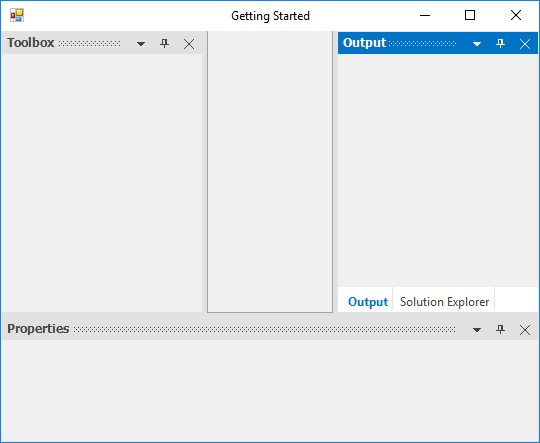
Make MDI child
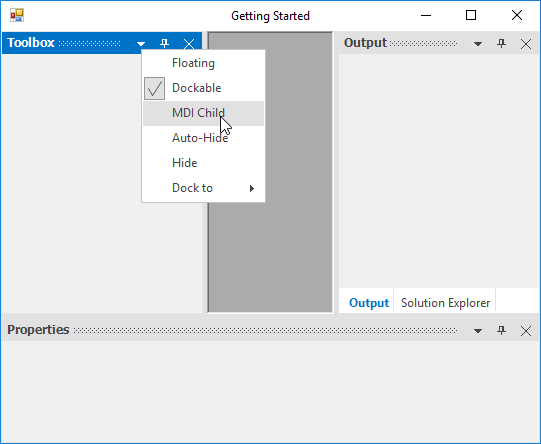
The SetAsMDIChild function helps to set the docking window to the MDIChild window in the WinForms Docking Control. Also, you can set the docked control as an MDI child in an easy method by using the MDI Child option in the context menu.
To enable MDI functionalities in the WinForms Docking Control, the
IsMdIContainerproperty of its parent form should betrue.
//To set as MDI Child window

this.dockingManager1.SetAsMDIChild(panel1, true);

this.dockingManager1.SetAsMDIChild(panel2, true);
'To set as MDI Child window
Me.dockingManager1.SetAsMDIChild(panel1, True)
Me.dockingManager1.SetAsMDIChild(panel2, True)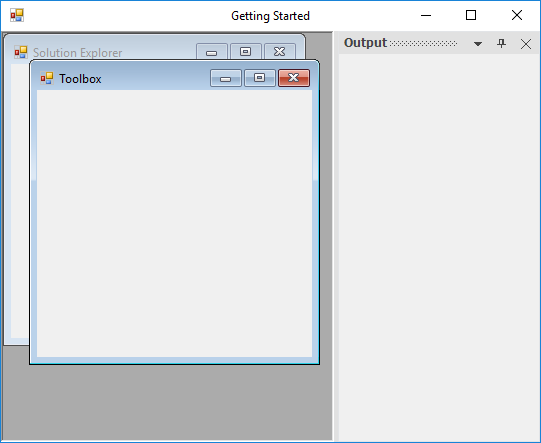
Serialize dock windows
The PersistState feature helps to save the current layout of the WinForms Docking Control automatically to isolated storage while closing the form. The dock state can also be saved by calling the SaveDockState function.
//Saves the current dock state to Isolated Storage.

this.dockingManager.SaveDockState();

//Saves the current dock state information to the specified AppStateSerializer.

this.dockingManager.SaveDockState(serializer);

//Saves the dock state information for the specified dockable control.

this.dockingManager.SaveDockState(serializer, this.listBox1);
'Saves the current dock state to Isolated Storage.
Me.dockingManager.SaveDockState()
'Saves the current dock state information to the specified AppStateSerializer.
Me.dockingManager.SaveDockState(serializer)
'Saves the dock state information for the specified dockable control.
Me.dockingManager.SaveDockState(serializer, this.listBox1)The saved state can be reloaded by calling the LoadDockState function, whenever it is required to load the states.
//Reads the persisted dock state from the Isolated Storage.

this.dockingManager.LoadDockState();

//Reads a previously serialized dock state using the AppStateSerializer object.

this.dockingManager.LoadDockState(serializer);

//Reads a previously serialized dock state for the specified dockable control and applies the new state.

this.dockingManager.LoadDockState(serializer, this.listBox1);
'Reads the persisted dock state from the Isolated Storage.
Me.dockingManager.LoadDockState(serializer)
'Reads a previously serialized dock state using the AppStateSerializer object.
Me.dockingManager.LoadDockState();
'Reads a previously serialized dock state for the specified dockable control and applies the new state.
Me.dockingManager.LoadDockState(serializer, this.listBox1)You can explore our WinForms Docking Control example that shows how to render the WinForms Docking Control in Windows Forms.