Getting Started with Windows Forms CommandBar
18 Nov 20185 minutes to read
This section provides a quick overview to work with the CommandBar control in WinForms.
Important
Starting with v16.2.0.x, if you refer to Syncfusion assemblies from trial setup or from the NuGet feed, include a license key in your projects. Refer to this link to learn about registering Syncfusion license key in your Windows Forms application to use our components.
This section describes how to add the CommandBar control in a Windows Forms application and gives an overview of its basic functionalities.
Assembly deployment
Refer to the control dependencies section to get the list of assemblies or the NuGet package that needs to be added as a reference to use the control in any application. Please find more details regarding installation of NuGet packages in the Windows Forms application.
Creating an application with CommandBar
You can create the Windows Forms application with the CommandBar control as follows:
Adding CommandBar via designer
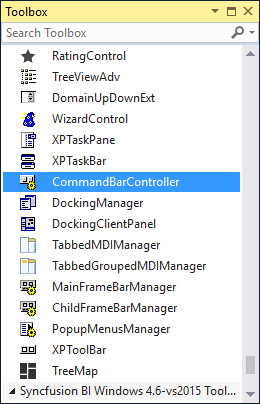
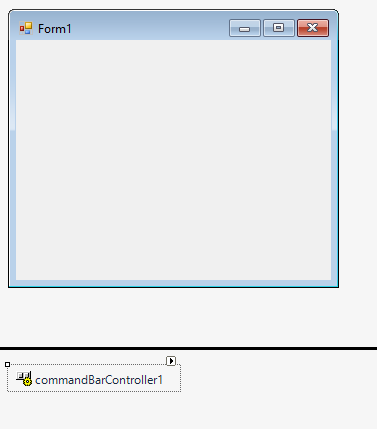
The CommandBarController can be added to the application by dragging it from the toolbox and dropping it to the designer view. The following required assembly references will be added automatically.
- Syncfusion.Grid.Base.dll
- Syncfusion.Grid.Windows.dll
- Syncfusion.Shared.Base.dll
- Syncfusion.Shared.Windows.dll
- Syncfusion.Tools.Base.dll
- Syncfusion.Tools.Windows.dll
- Syncfusion.Licensing.dll
- Syncfusion.SpellChecker.Base.dll
Adding command bar
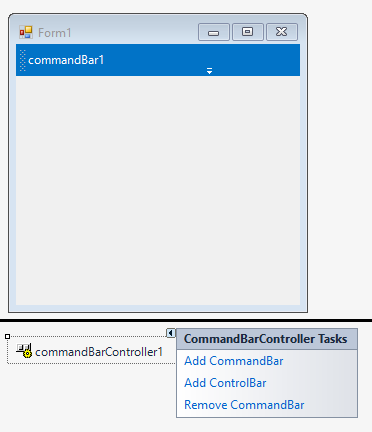
Command bar can be added to the command bar controller by selecting the Add CommandBar from the smart tag option.
Adding CommandBar via code
To add the CommandBar in C#, follow the given steps:
Step 1 - Add the following required assembly references to the project:
- Syncfusion.Grid.Base.dll
- Syncfusion.Grid.Windows.dll
- Syncfusion.Shared.Base.dll
- Syncfusion.Shared.Windows.dll
- Syncfusion.Tools.Base.dll
- Syncfusion.Tools.Windows.dll
- Syncfusion.Licensing.dll
- Syncfusion.SpellChecker.Base.dll
Step 2 - Include the namespace Syncfusion.Windows.Forms.Tools.
using Syncfusion.Windows.Forms.Tools;Imports Syncfusion.Windows.Forms.ToolsStep 3 - Create a CommandBarController instance and set the HostForm property to be the current form.
CommandBarController commandBarController1 = new CommandBarController();

this.commandBarController1.Style = VisualStyle.Office2016Colorful;

this.commandBarController1.HostForm = this;
Dim commandBarController1 As CommandBarController = New CommandBarController()
Me.commandBarController1.Style = VisualStyle.Office2016Colorful
Me.commandBarController1.HostForm = Me;Adding command bar
Create an instance of CommandBar and add it to the CommandBars collection property of the CommandBarController instance. The below code shows a command bar being added to the CommandBarController.
CommandBar commandBar1 = new CommandBar();

this.commandBar1.Text = "commandBar1";

this.commandBarController1.CommandBars.Add(this.commandBar1);
Dim commandBar1 As CommandBar = New CommandBar()
this.commandBar1.Text = "commandBar1";
this.commandBarController1.CommandBars.Add(this.commandBar1);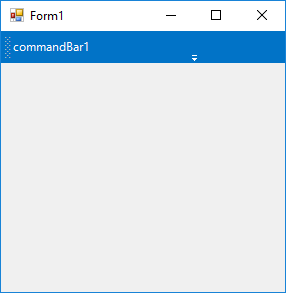
You can find the detailed description of various themes applicable to command bar in this topic
Child controls
The command bar acts as a container control to host the required controls in the toolbar. In this topic, the child controls hosted via the command bar are discussed.
Adding a single control
Controls with a single-line visual structure like combo box, text box, and button can be added directly to the command bar instance. This can be done by adding the required control via the Controls property of the command bar. In the below code snippet, a text box control is added to the command bar.
this.commandBar1.Controls.Add(this.textBox1);Me.commandBar1.Controls.Add(Me.textBox1)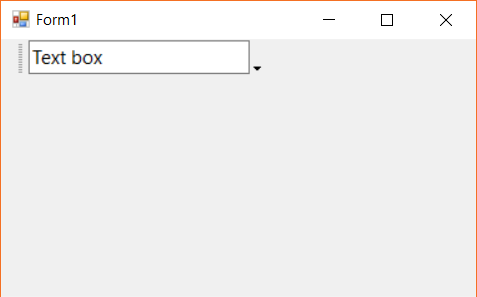
Adding multiple controls
In order to host more than one control with better alignment and to avoid overlapping, a container control like Panel can be used. In the below code snippet, a combo box is added along with a label control.
Panel panel1 = new Panel();
panel1.Dock = DockStyle.Fill;

Label lable1 = new Label();
lable1.Text = "Combo box text";
lable1.TextAlign = ContentAlignment.MiddleCenter;

ComboBox combobox1 = new ComboBox();
combobox1.Location = new Point(lable1.Width + 5, lable1.Location.Y);
combobox1.Items.AddRange(new string[] { "object1", "object2", "object3", "object4", "object5", });
combobox1.SelectedIndex = 0;
panel1.Controls.Add(lable1);
panel1.Controls.Add(combobox1);

this.commandBar1.Controls.Add(panel1);
Dim panel1 As New Panel()
panel1.Dock = DockStyle.Fill
Dim lable1 As New Label()
lable1.Text = "Combo box text"
lable1.TextAlign = ContentAlignment.MiddleCenter
Dim combobox1 As New ComboBox()
combobox1.Location = New Point(lable1.Width + 5, lable1.Location.Y)
combobox1.Items.AddRange(New String() { "object1", "object2", "object3", "object4", "object5" })
combobox1.SelectedIndex = 0
panel1.Controls.Add(lable1)
panel1.Controls.Add(combobox1)
Me.commandBar1.Controls.Add(panel1)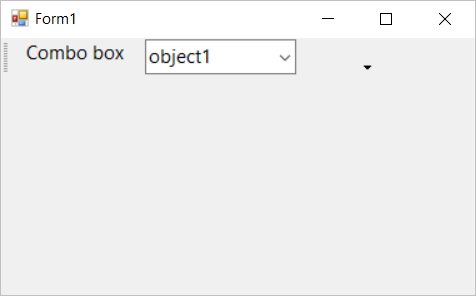
Adding menu items
Menu items could be added to the command bar only via the XpToolBar control. Refer this topic