Getting Started with Windows Forms SfComboBox
18 Nov 20185 minutes to read
This section explains how to use the SfComboBox control to build a drop-down selection component in a Windows Forms application.
Assembly deployment
Refer to the Control Dependencies section for the list of assemblies or the NuGet package details that must be referenced to use the control in any application.
Refer to NuGet Packages to learn how to install NuGet packages in a Windows Forms application.
To install via the NuGet Package Manager Console, run:
Install-Package Syncfusion.SfListView.WinForms
Adding SfComboBox via designer
-
Create a new Windows Forms project in Visual Studio.
-
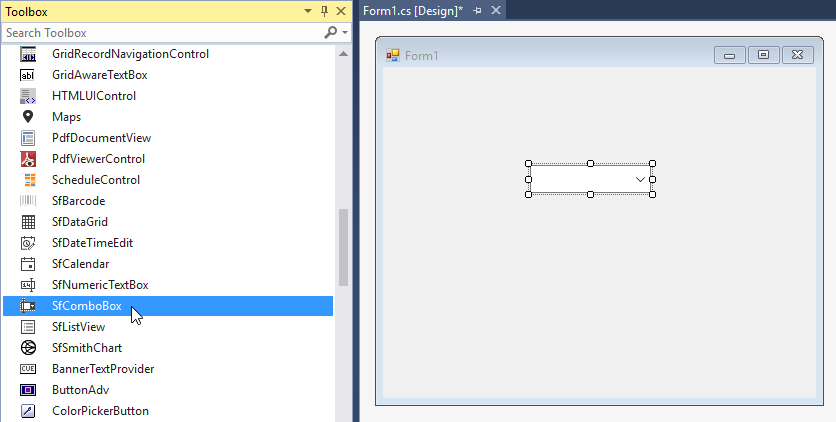
Add the SfComboBox to the application by dragging it from the toolbox to the designer surface. The following dependent assemblies are added automatically:
- Syncfusion.SfListView.WinForms
- Syncfusion.Core.WinForms
- Syncfusion.DataSource.WinForms
- Syncfusion.GridCommon.WinForms
Adding SfComboBox via code
To add the control manually, follow these steps:
-
Create a C# or VB.NET application in Visual Studio.
-
Add the following assembly references to the project:
- Syncfusion.SfListView.WinForms
- Syncfusion.Core.WinForms
- Syncfusion.DataSource.WinForms
- Syncfusion.GridCommon.WinForms
-
Create an instance of the SfComboBox and add it to the form.
using System.Drawing;
using System.Windows.Forms;
using Syncfusion.WinForms.ListView;

namespace WindowsFormsApplication1
{
    public partial class Form1 : Form
    {
        public Form1()
        {
            InitializeComponent();
            SfComboBox sfComboBox1 = new SfComboBox();
            sfComboBox1.Location = new Point(100, 100);
            this.Controls.Add(sfComboBox1);
        }
    }
}
Imports System.Drawing Imports System.Windows.Forms Imports Syncfusion.WinForms.ListView Namespace WindowsFormsApplication1 Partial Public Class Form1 Inherits Form Public Sub New() InitializeComponent() Dim sfComboBox1 As New SfComboBox() sfComboBox1.Location = New Point(100, 100) Me.Controls.Add(sfComboBox1) End Sub End Class End Namespace
Binding to data
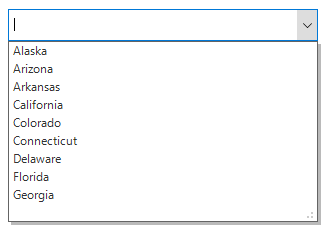
To bind the SfComboBox to data, set the SfComboBox.DataSource property to an IEnumerable implementation. Set the DisplayMember property to the name of the property to display, and set the ValueMember property to the name of the property to use as the actual value for the items.
using System.Collections.Generic;

List<string> usStates = new List<string>();
usStates.Add("Alaska");
usStates.Add("Arizona");
usStates.Add("Arkansas");
usStates.Add("California");
usStates.Add("Colorado");
usStates.Add("Connecticut");
usStates.Add("Delaware");
usStates.Add("Florida");
usStates.Add("Georgia");
sfComboBox1.DataSource = usStates;
Imports System.Collections.Generic
Dim usStates As New List(Of String)()
usStates.Add("Alaska")
usStates.Add("Arizona")
usStates.Add("Arkansas")
usStates.Add("California")
usStates.Add("Colorado")
usStates.Add("Connecticut")
usStates.Add("Delaware")
usStates.Add("Florida")
usStates.Add("Georgia")
sfComboBox1.DataSource = usStatesWhen the underlying data is a primitive type such as
stringorint,DisplayMemberandValueMemberare not required.
AutoComplete
AutoComplete provides three different ways to display suggestions in the drop-down list:
-
Suggest: Displays a suggestion in the drop-down list. -
Append: Appends the first suggestion to the text. -
SuggestAppend: CombinesSuggestandAppendbehaviors.
Set the AutoCompleteMode property to choose a mode, and set the AutoCompleteSuggestMode property to control case sensitivity and match strategy (e.g., StartsWith, Contains, Equals).
sfComboBox1.AutoCompleteMode = AutoCompleteMode.Append;
sfComboBox1.AutoCompleteSuggestMode = AutoCompleteSuggestMode.StartsWith;sfComboBox1.AutoCompleteMode = AutoCompleteMode.Append
sfComboBox1.AutoCompleteSuggestMode = AutoCompleteSuggestMode.StartsWith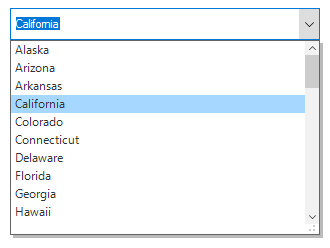
Multi Selection
SfComboBox allows you to select multiple values from the drop-down list. Multi selection is enabled by setting the ComboBoxMode property to MultiSelection.
sfComboBox1.ComboBoxMode = ComboBoxMode.MultiSelection;sfComboBox1.ComboBoxMode = ComboBoxMode.MultiSelection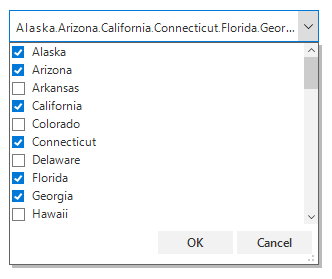
Selected Items
Use the following properties to retrieve the selection from SfComboBox:
- SelectedIndex returns the index of the selected item.
-
SelectedValue returns the value of the property bound to the
ValueMember. IfValueMemberis not initialized, it returns the value of the property bound to theDisplayMember. - SelectedItem returns the selected item.
-
SelectedItems returns all selected items in
MultiSelectionmode.
You can also explore our WinForms SfComboBox example that shows how to allow users to type a value, choose an item, or choose multiple items using a multiselect option.