ColorUIControl Appearance in Windows Forms ColorUI
18 Nov 20182 minutes to read
This section discusses the appearance, border styles, and size settings of the ColorUIControl.
Border Styles
The border style for the ColorUIControl can be set through the BorderStyle property.
| ColorUIControl Properties | Description |
|---|---|
| BorderStyle | Sets the border style for the control. The options are `FixedSingle`, `Fixed3D` (default), and `None`. |
this.colorUIControl1.BorderStyle = System.Windows.Forms.BorderStyle.FixedSingle;Me.colorUIControl1.BorderStyle = System.Windows.Forms.BorderStyle.FixedSingle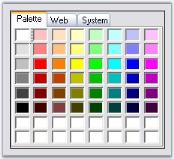
Panel Sizing
The Custom and User color panels can be stretched according to the size of the control using the following properties.
| ColorUIControl Properties | Description |
|---|---|
| CustomColorsStretchOnResize | Gets or sets a value indicating whether to stretch the Custom Colors panel on resize. |
| UserColorsStretchOnResize | Gets or sets a value indicating whether to stretch the User Colors panel on resize. |
this.colorUIControl1.CustomColorsStretchOnResize = true;
this.colorUIControl1.UserColorsStretchOnResize = true;Me.colorUIControl1.CustomColorsStretchOnResize = True
Me.colorUIControl1.UserColorsStretchOnResize = True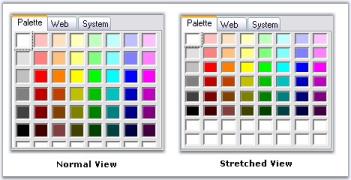
VisualStyle
VisualStyle provides a rich and professional look and feel UI for the ColorUIControl. Some of the available visual styles are as follows:
DefaultOffice2010MetroOffice2016ColorfulOffice2016WhiteOffice2016BlackOffice2016DarkGray
The visual style can be applied for the ColorUIControl using the VisualStyle property.
//Set the visual Style of the ColorUIControl control.
this.colorUIControl1.VisualStyle = Syncfusion.Windows.Forms.ColorUIStyle.Office2016Colorful;
'Set the visual Style of the ColorUI control.
Me.colorUIControl1.VisualStyle = Syncfusion.Windows.Forms.ColorUIStyle.Office2016Colorful